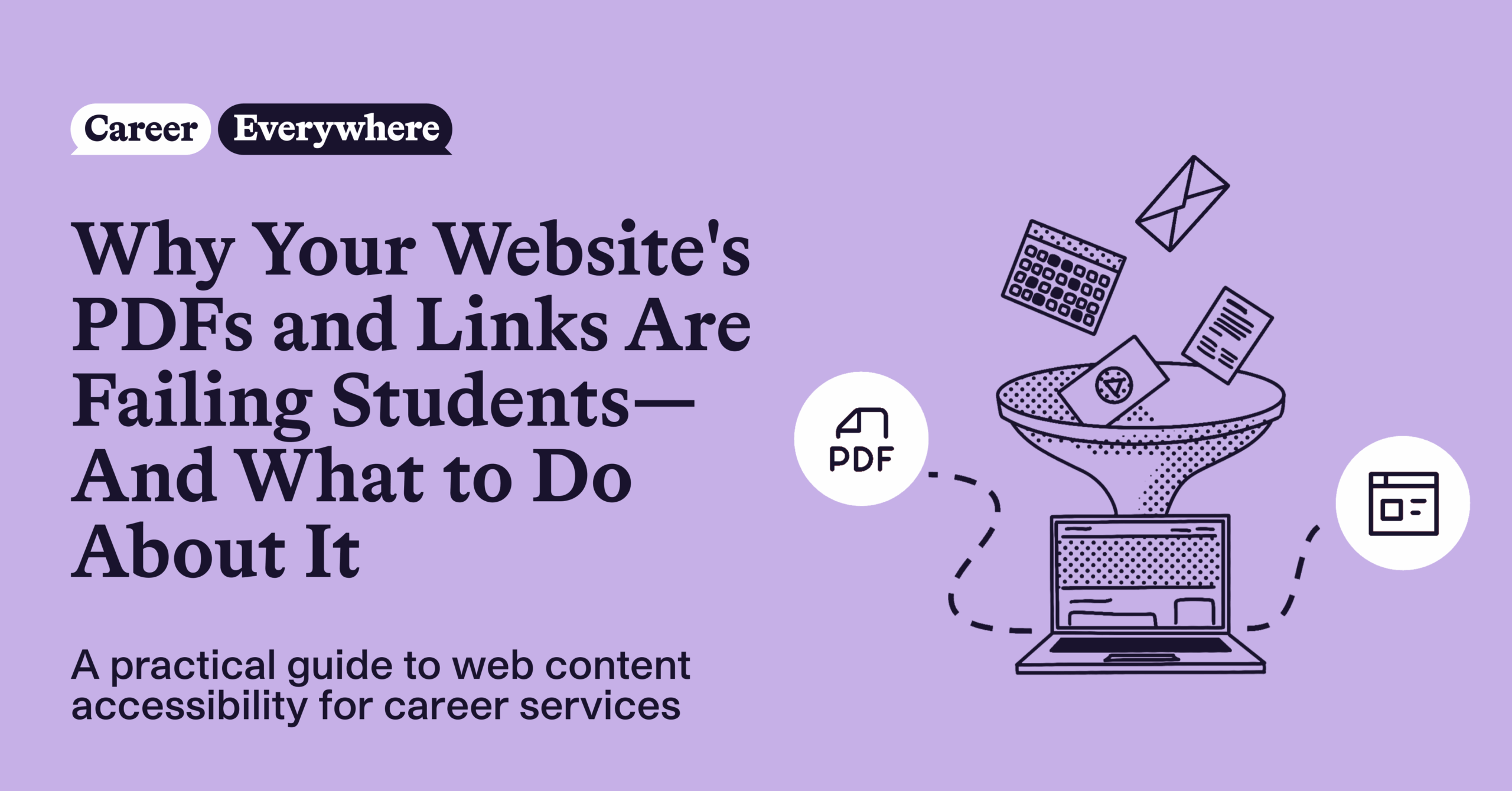
There’s a good chance your career center’s website is working against you.
Not because anyone made a bad decision—but because the way most career centers have organized their digital resources over the years runs directly into two realities that are converging right now: increasingly strict web accessibility requirements and the rapid rise of AI-powered search.
The culprits? PDFs and external hyperlinks. Two formats that career services teams have relied on for years to share resources with students—and two formats that, according to accessibility experts and web content standards, create significant barriers for students with disabilities, mobile users, and anyone relying on search to find what they need.
Here’s what you need to understand, and more importantly, what you can do about it.
If you’re a uConnect customer, check out our recent training on how to make your platform’s content accessible and discoverable. Note: the recording is housed in the Career Everywhere Community.
The accessibility stakes are real—and the clock is ticking
If your institution hasn’t already been fielding questions from your web team about WCAG 2.1 AA compliance, you probably will soon. Under ADA Title II, higher education institutions are required to meet WCAG 2.1 AA standards by April 2027. That deadline applies not just to your main university website—it applies to all digital content your institution produces and distributes, including the resources on your career center’s platform.
WCAG—the Web Content Accessibility Guidelines—is the internationally recognized standard for making web content usable by people of all abilities. And when it comes to PDFs and external links, that standard creates a clear challenge.
Untagged PDFs are not screen-reader compatible. When a student using assistive technology encounters a PDF that hasn’t been properly tagged for accessibility, the screen reader can’t interpret the document’s structure—headings, paragraphs, images, tables, etc. all collapse into an undifferentiated wall of text. A document that looks beautifully formatted to a sighted user becomes nearly unnavigable for someone using a screen reader.
Scanned PDFs are even more problematic. Many career centers have older resources—a resume checklist created years ago, a cover letter guide scanned from a printed handout—that are images of text rather than text itself. Screen readers can’t read these at all without optical character recognition software, and OCR results are often unreliable and sometimes wildly inaccurate.
External hyperlinks carry their own risks. When you link students out to a resource on another website, you have no control over whether that destination meets accessibility standards. You also have no control over whether the page will still exist next semester, whether the content will change, or whether a login wall will suddenly appear between your student and the information they need.
By contrast, HTML-based web content—text that lives natively on a webpage—comes with accessibility structure built in. When you use proper headings, lists, and paragraph formatting, you’re creating content that assistive technology can navigate and that every student can access, regardless of device or ability.
The discoverability problem is just as urgent
Beyond accessibility compliance, there’s a parallel challenge that career services teams are navigating right now: their most important resources simply can’t be found by search.
Think about what happens when a student types a question into a search bar—whether it’s a site search on your career center’s platform or a broader AI-powered search tool. The search engine looks for text it can read and index. It finds the titles and descriptions of your resource pages. But the content inside your PDFs? It can’t see any of it.
That means if a student searches “how to write a cover letter for a nonprofit job” and the answer to that question lives in a PDF you’ve carefully uploaded to your platform, the search comes back empty. From the student’s perspective, the resource doesn’t exist.
The same principle applies to content that lives behind external hyperlinks. A resource that lives on another website isn’t part of your platform’s content ecosystem. It can’t be searched, personalized, or surfaced by any tool your platform provides.
This discoverability gap matters more than ever as career centers evaluate AI-powered tools that are designed to help students find relevant resources through natural-language questions. These tools can only surface content that lives natively on the platform—as resource pages, blog posts, event details, or people profiles. A PDF attached to a page? A search tool may only see the title, not the contents. A PDF linked from an external URL? Invisible entirely.
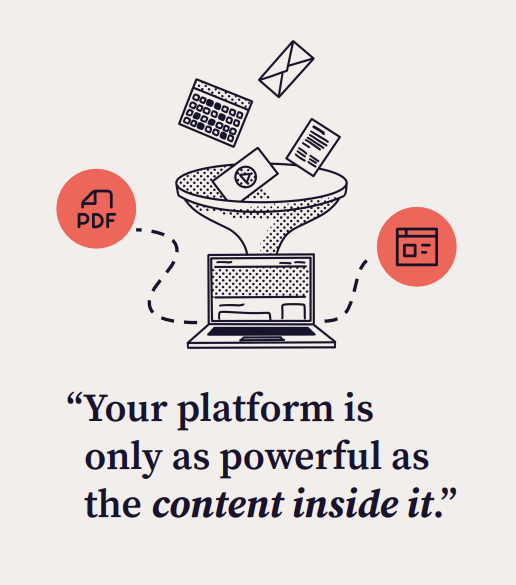
The bottom line: Your platform is only as powerful as the content inside it. If your most valuable resources are locked in PDFs or scattered across external links, students using search—any search—won’t find them.
uConnect’s Virtual Career Center platform has built-in accessibility features that make it easy for career centers to maintain a web presence that’s accessible, discoverable, and engaging—no IT or marketing team required. Learn more and schedule a demo.
You don’t have to convert every PDF
Before panic sets in, here’s the reassurance that every career services professional needs to hear: you do not have to convert every PDF on your platform.
The goal isn’t a PDF-free career center. The goal is a high-impact, highly discoverable one. And getting there starts with a simple question about each piece of content you’re evaluating:
Does a student need to read this to get value from it—or do they need to download and use it?
That question sorts most of your PDFs into one of three buckets:
- Convert. If the value is in reading the content—an interview guide, a list of action verbs for resumes, a FAQ about career fair registration—that content belongs in your platform as native text. It should live on a resource page or blog post where search can find it, where students can read it on any device without downloading anything, and where screen readers can navigate it cleanly.
- Wrap. If the value is in downloading and using the file—a resume template, a cover letter template, a fillable internship application—the PDF itself can stay. But it shouldn’t be the only thing on the page. A “wrapper” resource page built around the downloadable file is what makes the resource discoverable and accessible. More on what that looks like in a moment.
- Remove. Some of what your audit will uncover is simply outdated: broken links, PDFs from events three years ago, superseded versions of guides that have since been updated. Those can go.
How to convert text-based PDFs
For content that falls into the “convert” bucket, the process is more straightforward than it might seem. If you can format a document in Microsoft Word or Google Docs, you already have the skills you need.
The basic workflow:
- Open your PDF and select all the text. If the PDF is complex, convert it to Word format first—most institutional Adobe Acrobat licenses include this feature—which often cleans up some of the formatting artifacts for you.
- Create a new resource page or blog post on your platform and paste the text into the content editor. It will arrive as plain, unformatted text—that’s perfectly fine. You’re starting fresh.
- Add headings where the PDF had bold section titles. Headings aren’t just a style choice—they create the navigational structure that screen readers use to help users move through a document.
- Convert any series of items—tips, steps, examples—into a proper list format. Lists are faster to scan, easier to navigate with assistive technology, and more readable on mobile.
- Delete page numbers, headers, footers, and any formatting artifacts that copied over from the original document.
- Add alt text to any images you include that convey meaningful information. Alt text is a short description of an image that screen readers read aloud—it takes about ten seconds to write, and it’s one of the highest-impact accessibility improvements you can make.
- Preview your page and publish.
A few tips that save time: Use keyboard shortcuts to paste without formatting (Ctrl+Shift+V on PC, Cmd+Shift+V on Mac) to avoid inheriting unwanted styles from the original document. If your PDF has multiple columns, paste one column at a time rather than selecting everything at once—multi-column content often pastes in the wrong order. And don’t try to replicate the PDF’s exact visual design. Clean, well-structured web content is the goal. Readable beats pixel-perfect every time.
The wrapper approach for resume templates and other formatted files
Resume templates are the resource many career centers worry about most when this conversation comes up—and understandably so. Career services teams invest significant effort in building resume templates tailored to different populations: first-years, seniors, specific majors, students pursuing government or nonprofit careers. These templates have intentional formatting that matters. Converting them to plain text would undermine their purpose.
Here’s the good news: you don’t need to convert them. You need to wrap them.
Think of a resume template as having two jobs:
- Job one is formatting—preserving the layout so students can download the template and use it as a starting point. The PDF handles this job beautifully. Keep it.
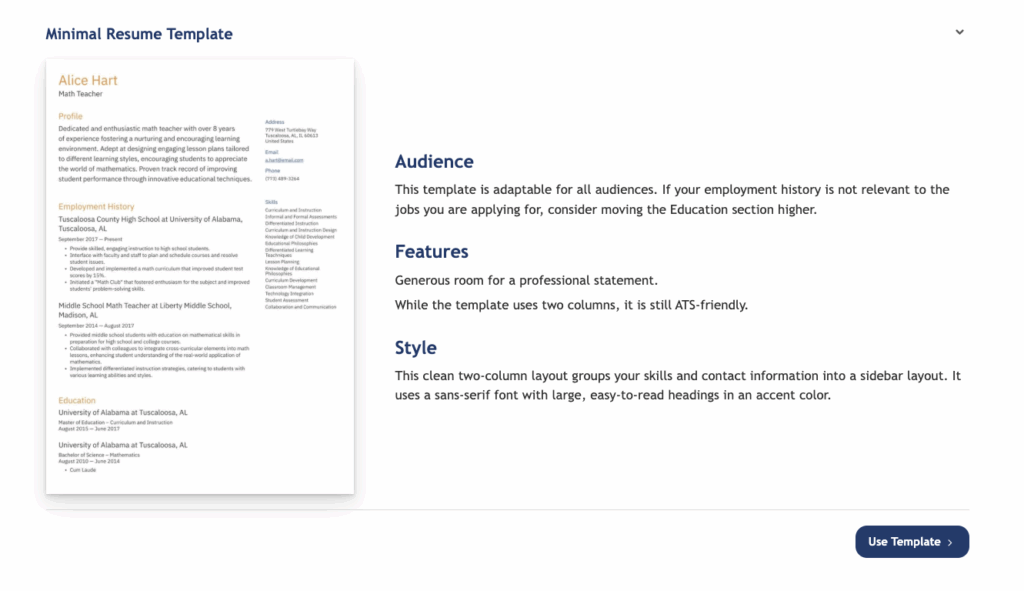
- Job two is discoverability—making sure that when a student searches “minimal resume template” or “two-column resume for finance,” the resource actually shows up. A native resource page handles this job. The PDF, on its own, cannot.
A well-built wrapper page for a resume template includes:
- A specific, descriptive title. “Resume Template” tells a search algorithm almost nothing. “Consulting Resume Template—ATS-Friendly, Single Column” tells it quite a lot. Think about the terms a student would actually type into a search bar and work those into your title.
- A brief introduction. Two to three sentences describing who the template is for, what makes it effective, and any notable features. This doesn’t need to be long—it needs to be informative and keyword-rich.
- A searchable tip list. A short bulleted list of guidance for using the template—things like “Move the Education section higher if you have limited work experience” or “Works well for ATS screening despite the two-column layout”—is where a significant portion of the search value lives. These are the kinds of specific, practical details that a student’s natural-language question might match.
- The PDF or DOC as a downloadable attachment. The file is still there. Students can still download it. Nothing about its format or usability changes. It’s just surrounded by context that makes it findable.
- Audience and topic tags. Tagging your resources to relevant career communities, audience types, and topic areas helps surface them in the right context, not just through keyword search.
- An optional preview image. A screenshot of the template helps students decide whether this is the style they want before they download anything—and if you add alt text to the image, it also helps screen readers communicate the template’s visual structure to students who can’t see it.
This same wrapper approach works beyond resume templates. Annual reports and outcome reports that need to stay in their original branded format, printable worksheets, official institutional forms, slide decks from recorded workshops—any formatted file that needs to be downloaded can benefit from a native page that provides context, searchable text, and accessibility.
For inspiration, check out this example of a wrapper page for a resume template (built on a uConnect Virtual Career Center platform).
Small web accessibility wins with big impact
Beyond the structural changes of converting and wrapping, there are a handful of content practices that have an outsized impact on accessibility and are easy to implement starting today.
Ditch “click here” as link text. When a screen reader navigates a page by jumping from link to link, it reads the link text aloud. A page full of links that say “click here” provides no useful information to a user who can’t see the visual context around the link. Instead, write descriptive link text: “Download the Federal Resume Template,” “View the Fall Career Fair Schedule,” “Connect with an employer in finance.” This is also required under WCAG 2.1—it’s not just a best practice, it’s part of the compliance standard your institution is working toward.
Don’t rely on color alone to convey meaning. If you’ve ever formatted a list with “good examples” in green text and “examples to avoid” in red text, a student with color vision differences may see both lists as identical. Add a label or heading that communicates the distinction in words, not just color.
Write titles that students would actually search for. There’s terminology that makes complete sense within career services—”experiential learning resources,” “career competency frameworks”—that a student would never type into a search bar. When you’re writing or updating resource titles, ask yourself: what would a sophomore actually search for when they’re looking for this? That’s your title.
Tag everything. Tags are labels that provide context. If you use uConnect’s Virtual Career Center platform, tagging resources to relevant communities, career paths, and audience types is one of the most powerful things you can do for discoverability. At minimum, tag each resource to three or more relevant categories or audience groups.
If you don’t use uConnect and have a traditional website, you can apply the same idea by organizing content into clear categories and subcategories—for example, sorting blog posts or resources by topic or audience—so visitors can easily filter and find what’s relevant to them without having to dig through everything.
Audit for broken links at least once a semester. Every broken link on your platform erodes student trust—and students don’t distinguish between “the link is broken” and “the career center doesn’t have what I need.” Many web accessibility tools include link-checking features, and some career center platforms have export features that let you download a spreadsheet of all your resources with file types and URLs, making it easy to sort for potential issues.
How to make web accessibility a practice, not a project
The most sustainable approach to accessibility and discoverability isn’t a one-time content sprint. Rather, it’s a set of habits that prevent the problem from growing.
Establish a new resource rule. Going forward, any new resource gets a native page first. PDFs and external links become attachments or supplementary references, not destinations.
Build a quarterly triage check into your calendar. Assign someone on your team to review new PDFs or external links that have been added and flag any that need conversion or a wrapper page. An hour each quarter can prevent a year’s worth of backlog from accumulating.
Start with your highest-traffic resources. If a content audit of your platform feels overwhelming, start with the three to five resources students ask about most—the ones your team emails out constantly, the ones that show up at the top of your analytics. Converting or wrapping those first builds momentum and delivers the most immediate impact.
Track what you’re doing. Whether it’s a spreadsheet, a project management tool, or a shared document, keeping a running record of what you’ve converted, wrapped, or removed makes the work visible—and visible work is easier to celebrate and easier to report on when it matters.
The April 2027 ADA Title II deadline is close enough to feel urgent, but far enough away that there’s still time to approach this thoughtfully rather than reactively. Career centers that start now—beginning with their most-used resources, building good habits, and applying a simple triage framework—will be in a far stronger position than those waiting for a compliance notice to prompt action.
More importantly, they’ll be building career center platforms that actually work for every student who walks through the digital front door.
uConnect’s Virtual Career Center platform has built-in accessibility features that make it easy for career centers to maintain a web presence that’s accessible, discoverable, and engaging—no IT or marketing team required. Schedule a demo.